2011
01.24
Every home consumer ADSL router I have come across uses a nice web gui interface where you can manage and configure your router settings from. These should hopefully be self explanatory to most of you. Most routers will also now come with DDNS support built into them. Again, this should also be self explanatory using the web gui interface.
The commands to configure a Cisco router through IOS to use DDNS however are not as well documented or self explanatory so I have pulled them from my running config using DynDNS as the service provider and pasted them below.
**You might find that it is necessary to hit the escape sequence Ctrl+v in order to enter the’?’ in the config url below otherwise the IOS parser will interpret the question mark as an attempt to invoke the context sensitive help.
In global config mode:
ip ddns update method update_name_blah

http

add http://username:password@members.dyndns.org/nic/update?system=dyndns&hostname=<h>&myip=<a>

interval maximum 28 0 0 0

interval minimum 28 0 0 0
Then under the Dialer interface:
ip ddns update hostname example.dyndns.org

ip ddns update update_name_blah host example.dyndns.org
It is worth noting that your Cisco router will automatically update your DynDNS account every time your IP changes. If however you set your router update interval to update repeatedly and your IP address hasn’t changed there is a good chance your DynDNS account will be temporarily blocked, hence the reason I have set my manual update interval to every 28 days.
2011
01.24
As I’m sure you’re all aware hosting a website with a static public IP address is pretty straight forward. Point your domain names’ DNS A record, depending on your setup, directly to the dedicated public IP address of your webserver OR to the public IP address of your router/firewall and enable port forwarding internally to your websever. Then simply open up port 80 on your firewall /server, unless you want to be different that is and use another web port, and hey presto job done.
But what happens if for some reason you’re unable to obtain a public static IP address or like me you just don’t want to pay extra money every month to your ISP for a static IP address?
The answer is easy. Simply sign up for a free dynamic DNS account from your preferred provider; I use dyndns.com. Now configure your router/firewall/webserver to update your public IP address with your dynamic DNS account every time it changes. All that’s left is to point your domain names’ CNAME record to your dynamic DNS account.
Now in case you’re wondering how well this actually works in practice, using the method described above, for me personally, I have never had an issue. I have noted that the dynamic IP address update is resolved instantly by the domain name lookup when your IP address changes which is great, although it does help to understand where else you may encounter problems. I can only think of two places that might occur which are as follows:
- If the dynamic DNS update fails for whatever reason your domain name will be left pointing to your old previous public IP address.
- And secondly if the machine you are browsing from uses a cached DNS record after your IP address has been renewed. This can be a browser setting or a network setting.
Below is a copy of the DNS management guide I downloaded from my domain name provider which you might find useful if you have any other questions regarding your domain name DNS management.
DNS Management Guide
2011
01.23
I just came across an issue trying to upload some files to my wordpress server that were larger than 2MB. By default in wordpress, 2MB is the maximum file size upload limit. After a little digging around it turns out this is infact a default setting defined by the PHP language handler settings.
To resolve the issue simply edit the upload_max_filesize variable in your php.ini file on your server assuming you don’t have an htaccess file overriding this setting.
Since I’m running Ubuntu 10.04 LTS the steps were as follows:
- sudo nano /etc/php5/apache2/php.ini
- then change upload_max_filesize=2MB to upload_max_filesize=5MB
- sudo /etc/init.d/apache2 restart
2011
01.23
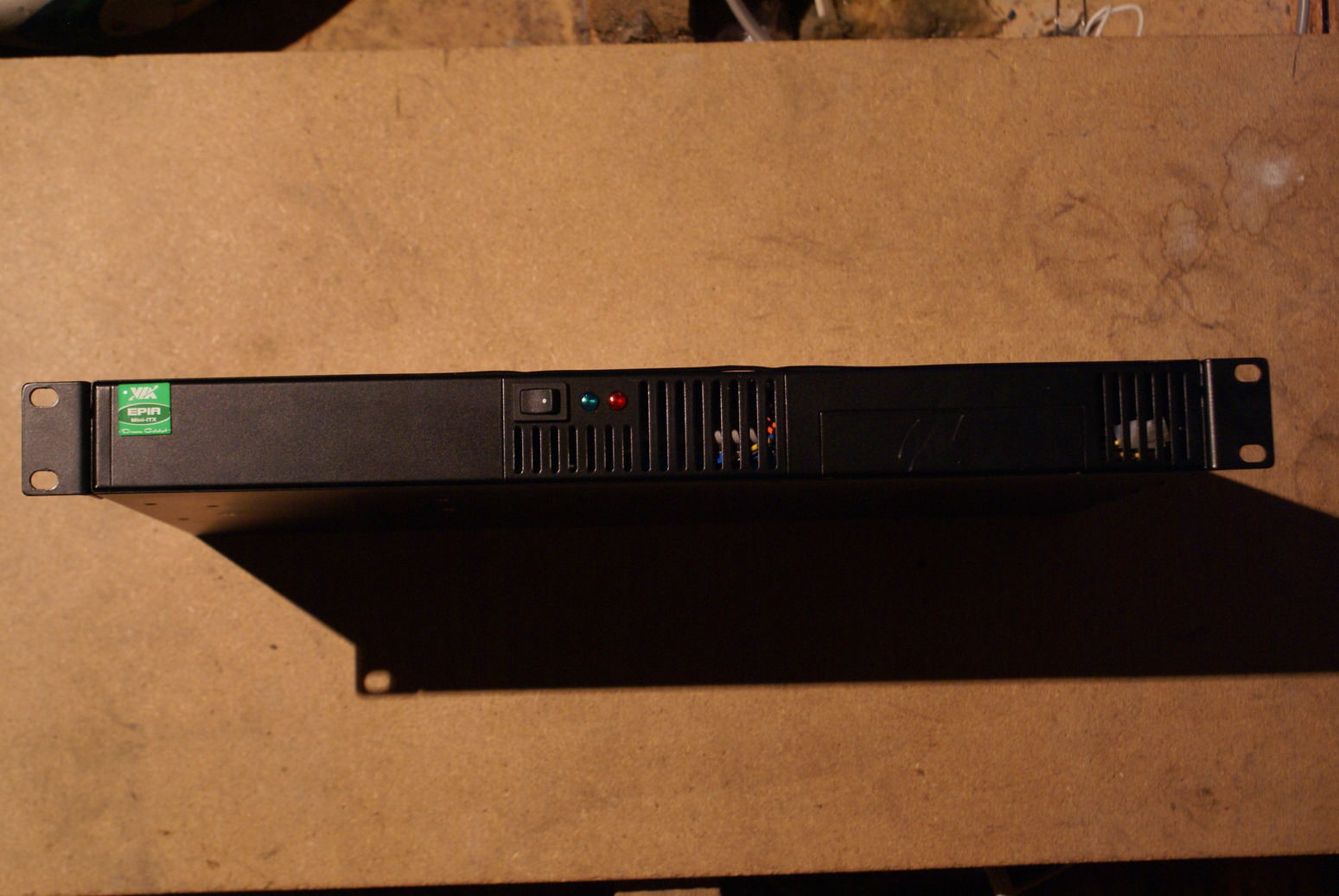
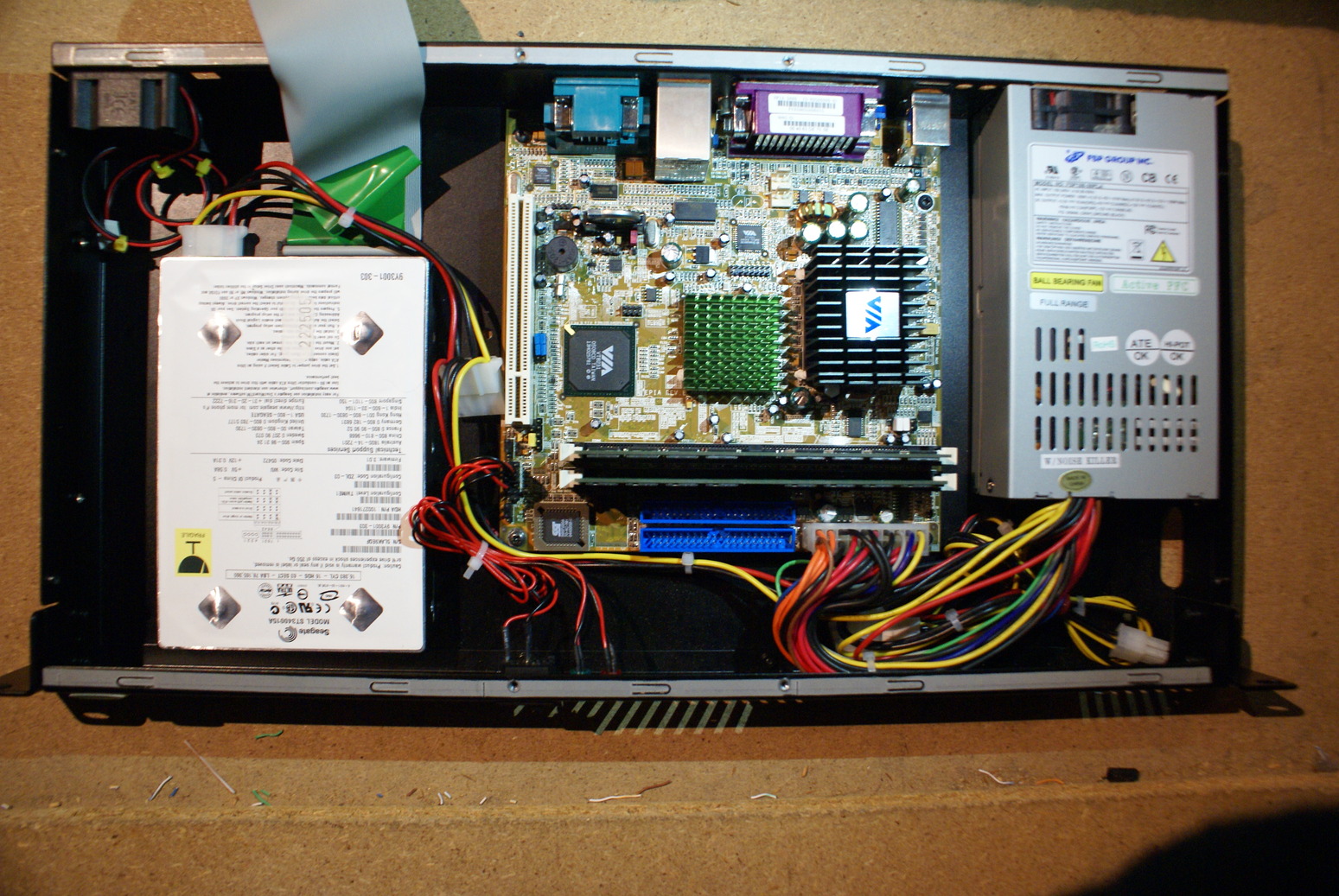
So to host a website you need a webserver right? Sure there’s plenty of virtual hosting sites on the internet that take care of all of that for you, but if you’re like me, or maybe a little old school and want to manage every aspect of your web presence, or perhaps you just don’t like the idea of uploading all your personal files onto somebody else’s hardware, then hosting your own physical webserver is the way to go. Since I host my webserver in my own home which runs 24×7, the two most important things to me when buying my server were a) a silent passively cooled server, not annoy me or my other half and b) a low power server which will be cheap to run. It always comes down to cost in the end.. I was lucky enough to find a VIA EPIA5000 server on ebay for £40 which ticked both these boxes. The machine sits upstairs in my loft and with the exception of the ultra quiet psu & hard drive which you really have to strain yourself to hear is completely silent. On the power side of things the VIA C3 Samuel2 core processor is extremely energy efficient and surprisingly snappy too and uses just 5W of power under normal load at about 32C. -That’s less power than an energy saving light bulb! Below is a photo of the machine in its rack mount case and a look under the hood. The one thing I might still do is swap the 3.5inch drive for a lower energy 2.5inch laptop drive, but otherwise I’m fairly chuffed with it.
System specs are as follows:
VIA EPIA5000 Rev. E motherboard
VIA C3 @ 533Mhz CPU (Samuel2 Core)
512MB PC133 CL3 RAM
40GB 5400rmp IDE HDD

VIA EPIA5000 Datasheet
VIA EPIA5000 Manual
2011
01.23
I thought it might be useful to post this here after my previous post banging on about high resolution monitors/displays. It has been proven that larger monitors and higher resolution displays do in fact increase productivity. Apple were behind a study commissioned to evaluate their 30-inch Apple Cinema Display which concluded that large screens can offer gains of up to 50 per cent to 65 per cent in productivity on a variety of specific office tasks and can earn back their extra costs in time savings over several years. Other experts have argued that those conclusions are wrong, that the productivity improvement estimates are too high and that using two monitors side by side would likely be a better productivity booster than one larger monitor. Well, as I use a laptop as my primary workstation at home mainly due to our small flat and lack of space, sadly dual monitors are not an option for me, although I do make good use of dual WUXGA monitors at work. While I would certainly agree two physical monitors are better than one, I do tend to make good use of virtual desktops under linux on my laptop at home as a compromise. This way I benefit from the extra desktop real estate without having to compromise physical space that the extra monitors would take up. That being said if I did have the physical space and money available I would without hesitation invest in a dual WQXGA monitor setup.
Below is a useful image comparing graphic resolution and the resolution productivity report commissioned by Apple.
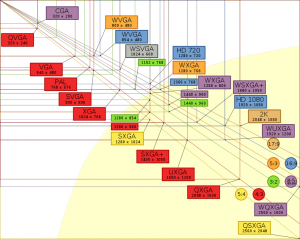
Resolution Productivity Report
2011
01.23
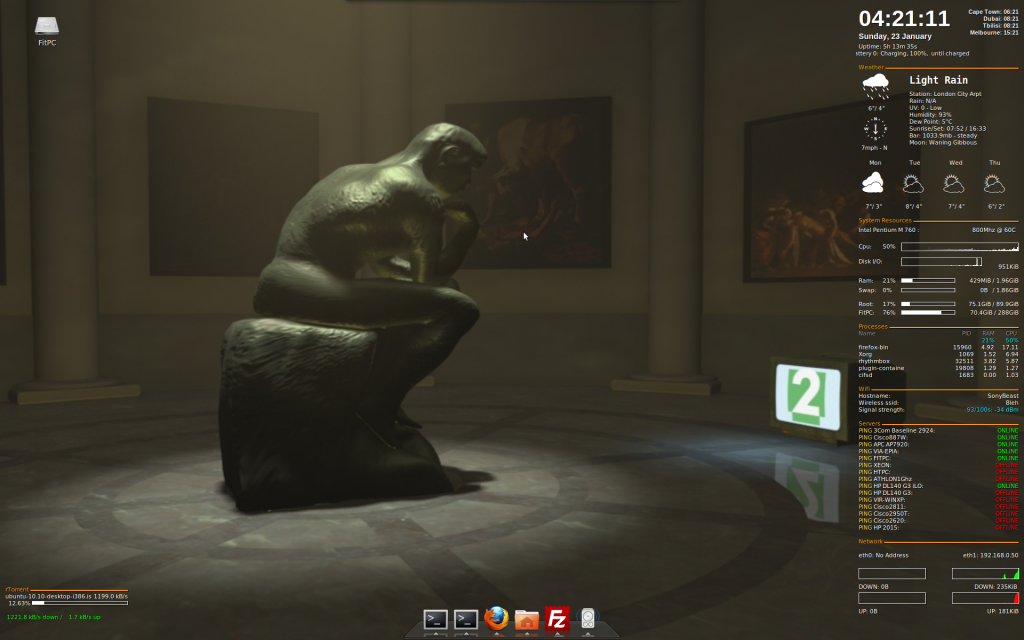
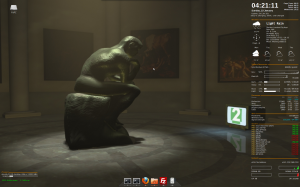
I thought I’d quickly post this screenshot of my laptops desktop, mainly just to see how wordpress displays it on the website. I guess at a later date I could also upload and explain some of the scripts I use for the various monitoring apps on my desktop… That’s 1920×1200 of resolution goodness btw.. -I have become spoilt and a bit of a resolution snob since acquiring my laptop which is also my primary desktop machine in 2007. Now I would hate to go any lower than WUXGA on my primary workstation and to be honest I don’t think 1080p would even cut it for me now.. I do tend to use every pixel of the vertical display resolution and it’s funny but you really do notice those few extra pixels missing when switching between WUXGA and HD 1080p. Like any woman will tell you, those few extra mm do make all the difference. Now I just wish there were laptops out there capable of WQXGA!
2011
01.23
Well, this website/blog whatever you want to call it, it’s for me not for you :p -Sorry to disappoint you, all of my dedicated readers.. The main point of it is to help me develop my skills in a ‘live’ real world environment and document what I’ve learned. With any luck it will turn into a useful resource or knowledge base for me to refer to in the future. I’d like to try and have a bit of fun with it too during that process, hopefully helping me gain momentum and motivation to keep the website growing. Right now I’m quite excited about this new project, I already have a small archive of notes I can upload and a few other ideas too, I’m sure it’ll be fun, lets just hope I can find the time!